_01JMZ4H43P2JR7Z62M1XDT4TBF.png)
Display Fomo notifications on your Subbly Subscription Site
Using Subbly to sell subscriptions? Two ways to display Fomo notifications on your site.
Custom Webhook
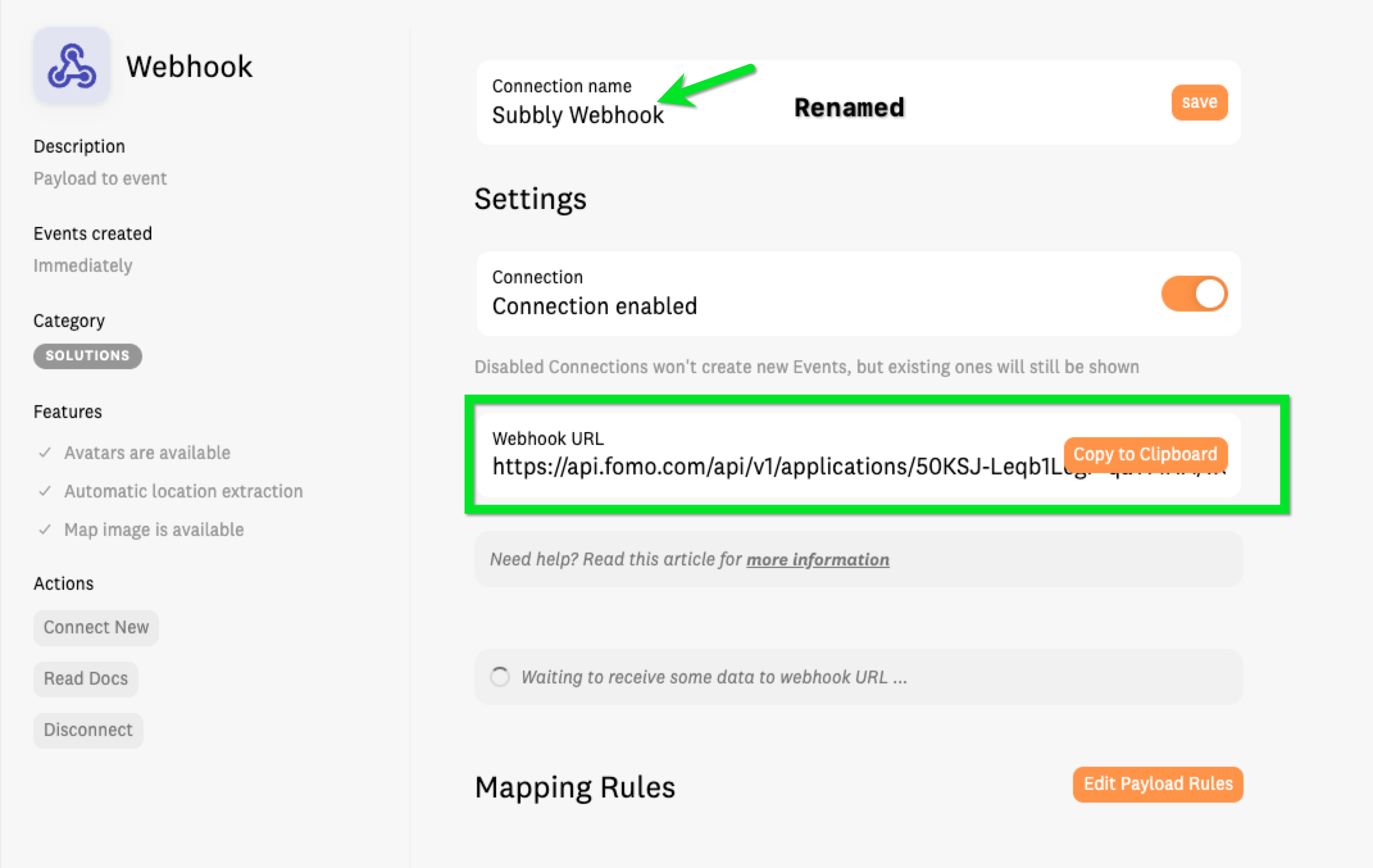
The simplest way to create Fomo notifications for new subscriptions, purchases or other customer actions is with Custom Webhooks. Add the Custom Webhook notification to Fomo and copy the URL:
In your Subbly Admin find Automations in the menu on the left, click and then select Create an Action.
Select the action you want to send to Fomo. We recommend starting with Purchase Completed. When the action is completed, select Send Webhook from the options available.
Complete the Automation:
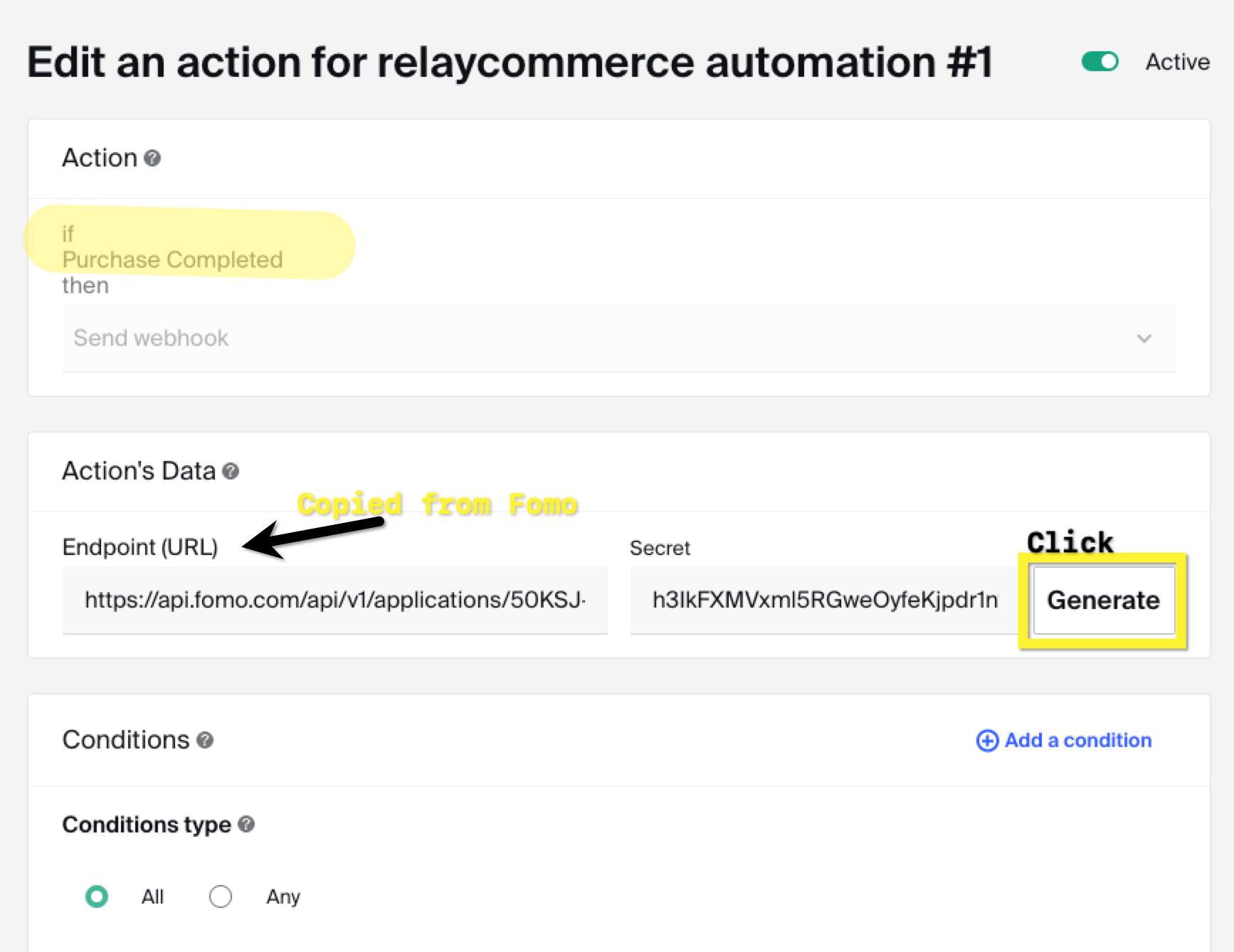
Be sure to click Generate to auto-fill the Secret field.
No conditions are needed unless you want to exclude a specific product from the automation.
Click SAVE at the bottom of the automation. The next purchase in your store will be sent to Fomo. If you want to test it right away try completing a purchase in test mode.
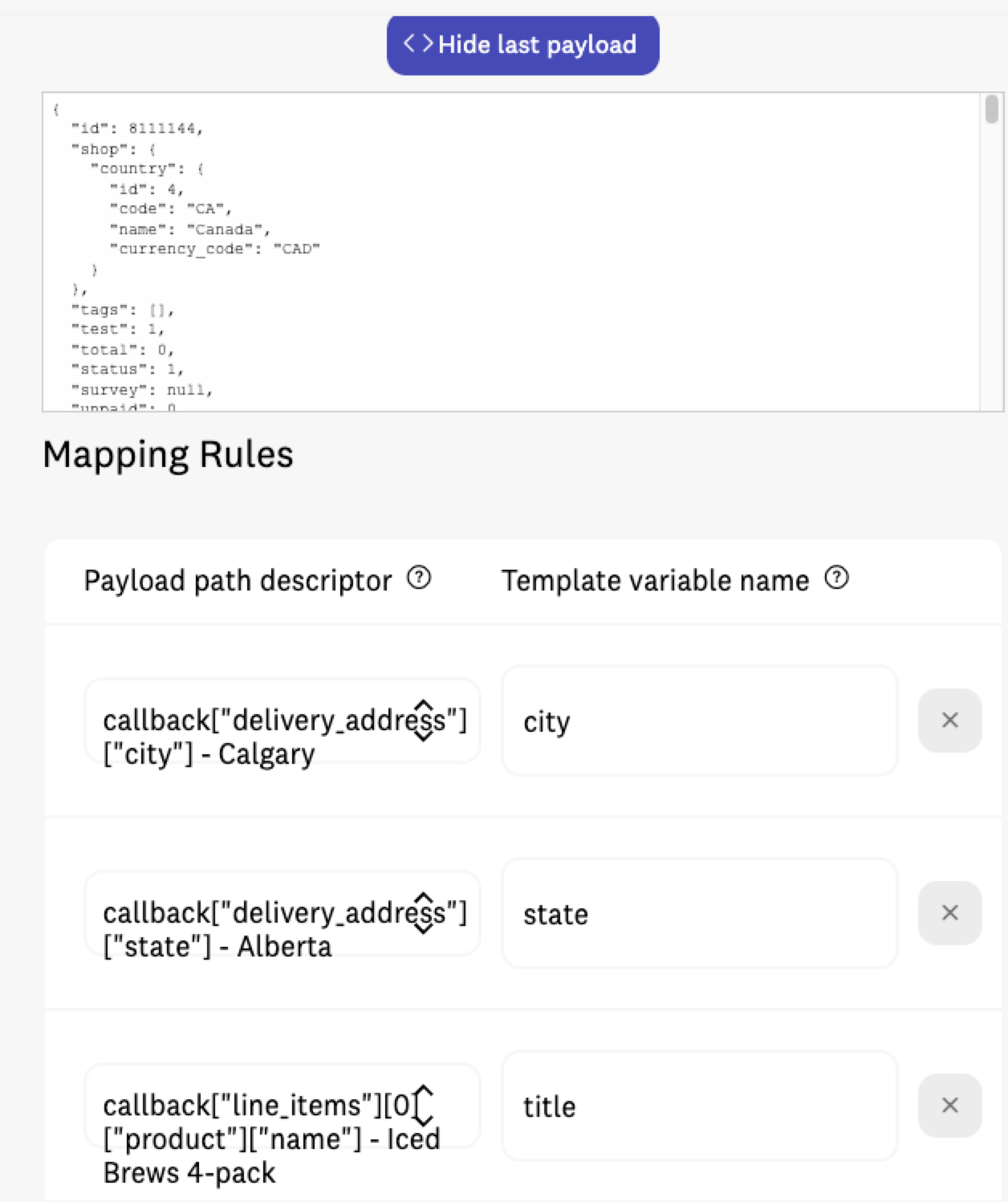
Return to Fomo and look for the payload. Then map the data returned in the payload to variables to use in your notification template.
Here is what the completed notification template looks like after mapping:
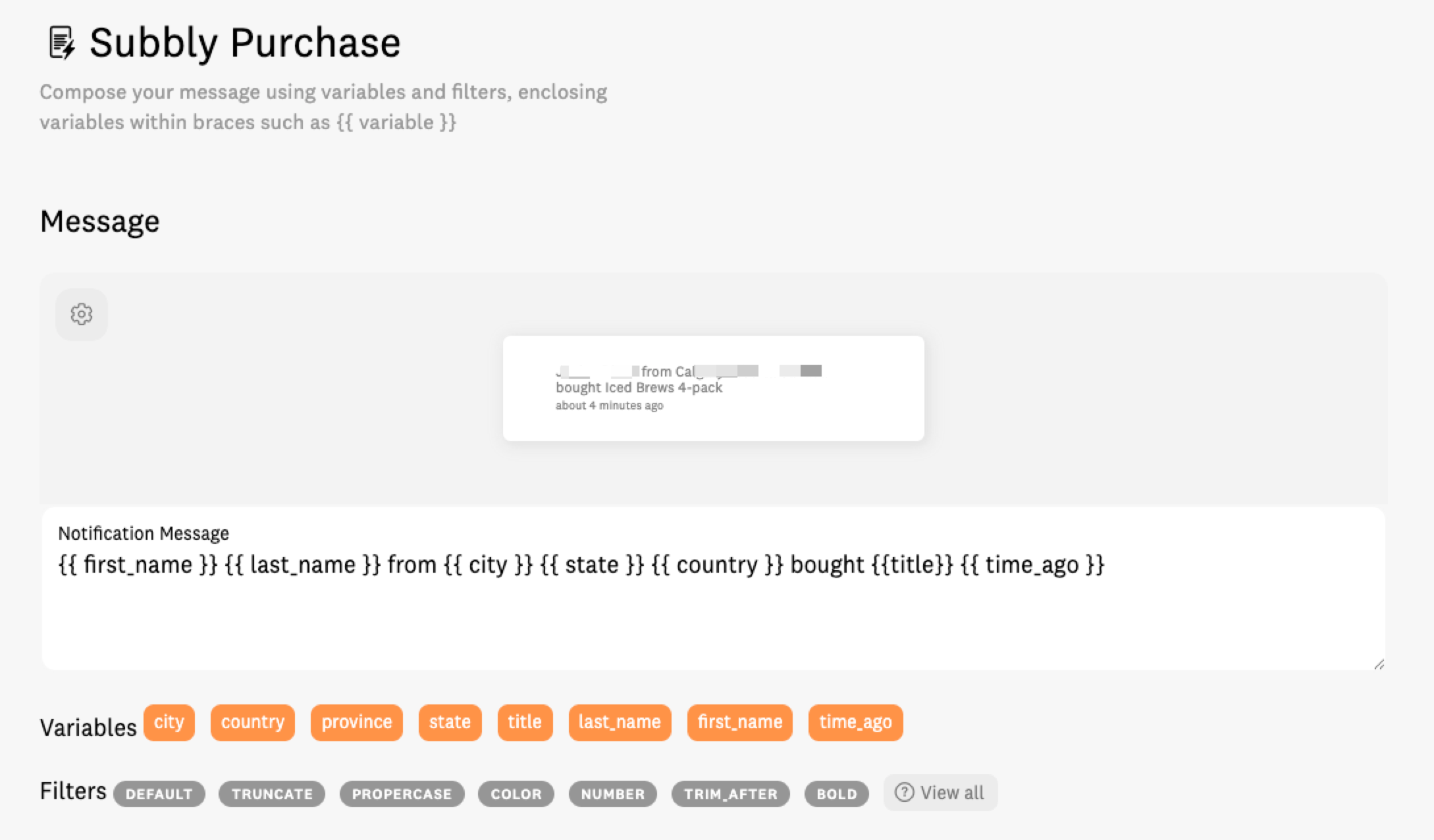
Now you're ready to show Subbly purchases as notifications! If you want to skip setting up the webhook and mapping the payload, try using the Stripe Notification for Fomo.
There are many other automations in Subbly you can use to send an event to Fomo such as Subscription Created, Renewal Completed or New Post to Content Feed.
Display Subbly Purchases using the Fomo Stripe Integration
Connect the Stripe notification for Fomo.
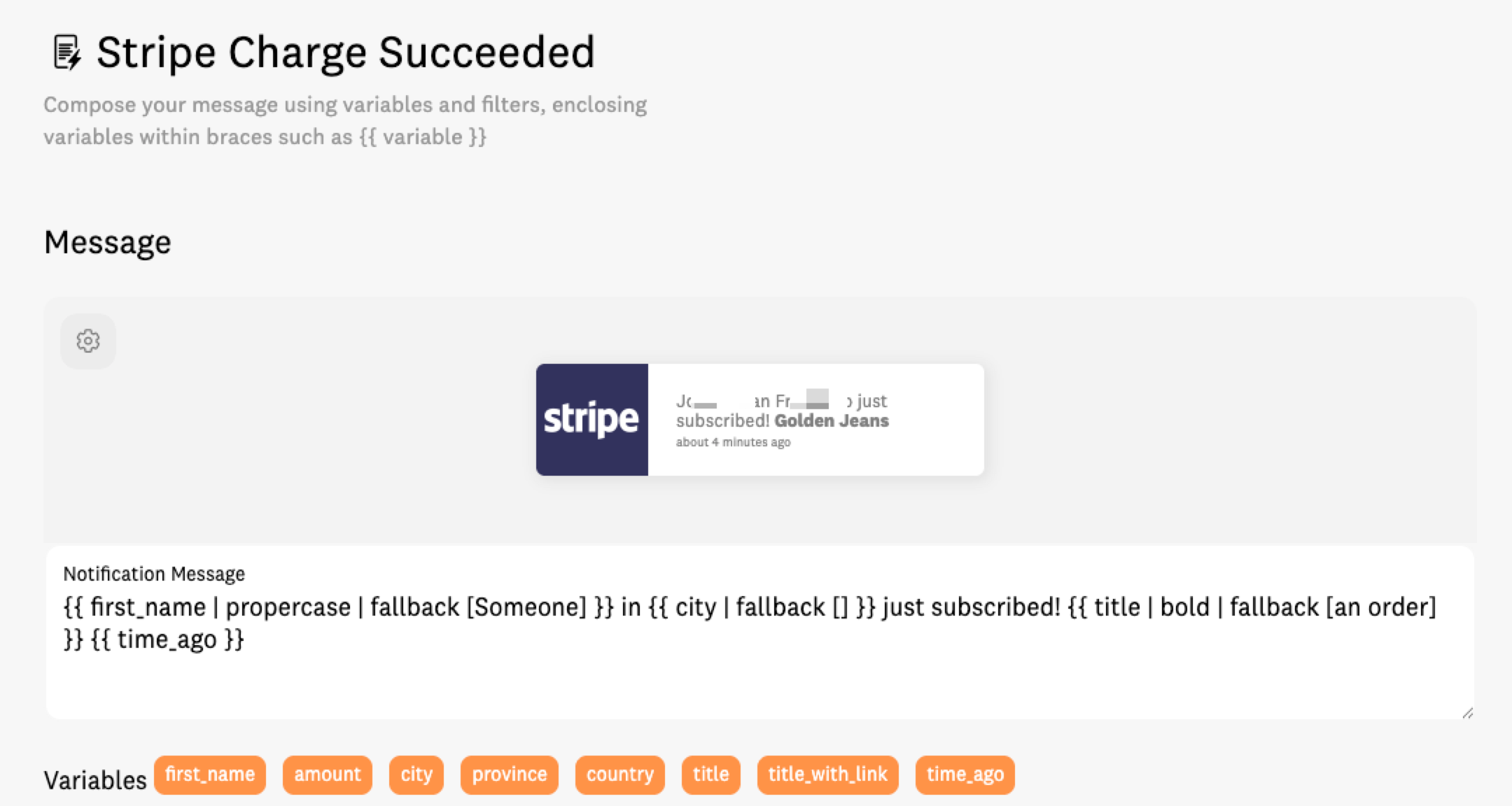
Personalize the Stripe template, then check your Events feed and filter for Stripe to see how the notification will look. Update the default image so the Stripe logo won't be displayed each time. Your product images will override the Stripe Logo fallback.
And you're done!
Need Help?
If you get stuck on any step, email hello@usefomo.com. Our support team can help you troubleshoot your webhook and field mapping.